Imperial Barrel
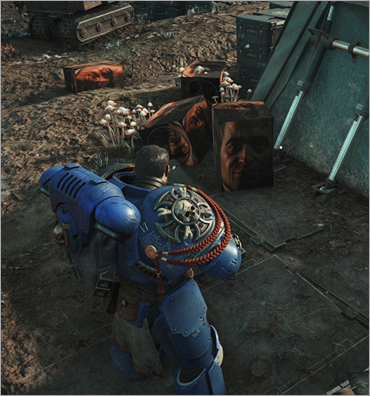
The simplest example. In this example, we will replace the contents of phys_imp_barrel_02 with a square barrel, including texture replacement.
Converting USF to GLTF
- Convert the example
USFfile of a barrel into aGLTFfile. - Put
phys_imp_barrel_02into the same folder as Model Converter, then drag and drop it ontoModelConverter.exe. You get a GLTF/BIN file of that barrel. - Open Blender and delete the default cube and camera (press A to select all, then X > Delete while focused on the viewport).
-
Go to File > Import > GLTF and import the
GLTFfile of the barrel.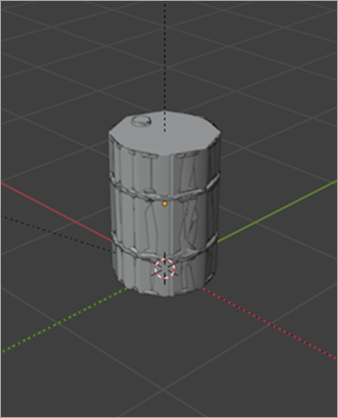
Object structure
Let’s review the model structure: it is simple, but it is important for every static object.
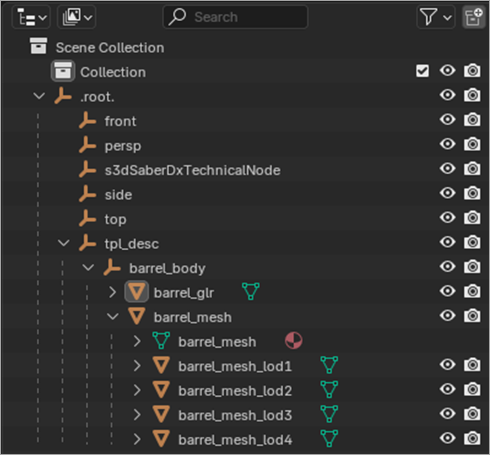
The hierarchy of a static item model.
.root.— not required in new versions of Model Converter; it is added automatically.front,persp,side,top— non-important leftovers.s3dSaberDxTechnicalNode— important but not required. Model Converter creates it for you if it is not present, but it holds no important parameters (may be a legacy leftover).tpl_desc— very important. This object contains information about the tpl actor — its name and parameters. Generally, Model Converter does not care about the info in this node, but it is still important to define whether it is a static item model or a character.barrel_body— used for grouping.barrel_glr— the collision mesh for the barrel.barrel_mesh— LOD0, the most detailed mesh of the barrel.barrel_mesh_lodX— LODs for the barrel.
In the screenshot below, meshes are shifted for the visual demonstration:
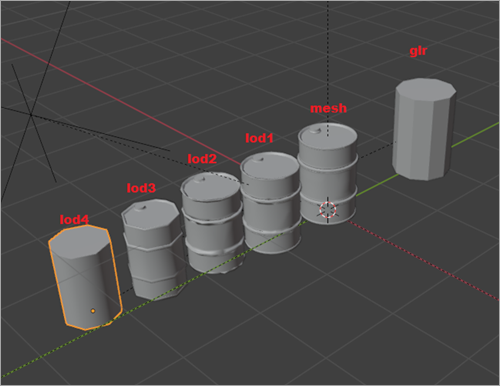
You can remove anything except tpl_desc and its contents. See the screenshot below for reference hierarchy.
In this simple example we do not need LODs, so let’s delete them for now.
- Select
barrel_meshin blender hierarchy window, right-click and select Delete Hierarchy. - Create a cube, make it fit the size of the barrel, and select Object > Apply > All transform.
-
Put the cube under
barrel_body(drag and drop your Cube while holding shift and release it) and give it a proper name (in this example it is squarrel).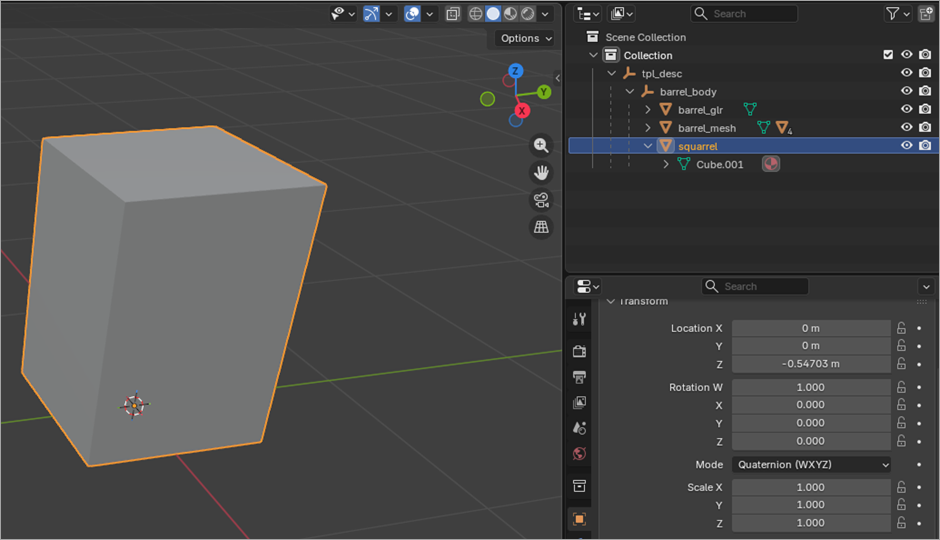
-
Select squarrel and enter Edit Mode.
-
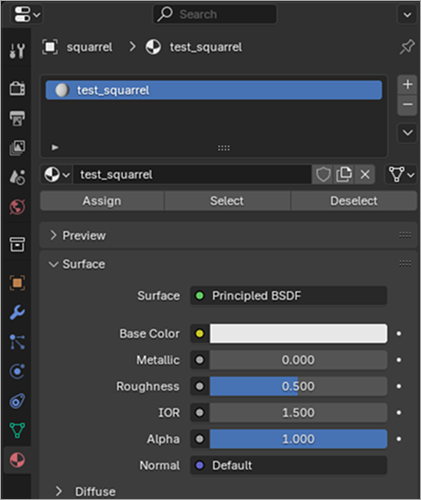
Go to the Materials tab and create a new material called test_squarrel. It does not matter what the material contains, only its name matters. Select all vertices by pressing A and click Assign.
Exporting
-
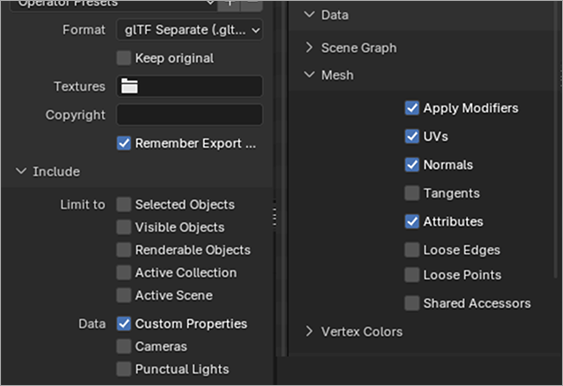
Go to File > Export > GLTF:
-
Format — GLTF
- Settings:
- Include — Data > Custom Properties.
- Data — Mesh > Apply Modifiers, UVs, Normals, Attributes.
- Material — Images, None.
- Export the model.
Compiling graphics for game use
- Drag and drop
phys_imp_barrel_02.gltfontoModelConverter.exe. - Copy the generated USF file to the
UsfExporterfolder. - Open the folder of your UsfExport, go to the project and create folders
assetsandtd. - Copy
test_squarrel.tdinto that folder. -
Copy and paste the
test_squarrel.tgafile to theUsfExporterfolder.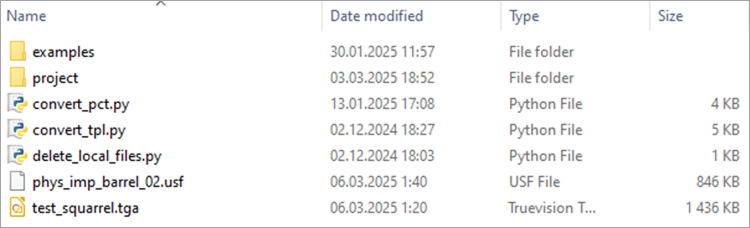
-
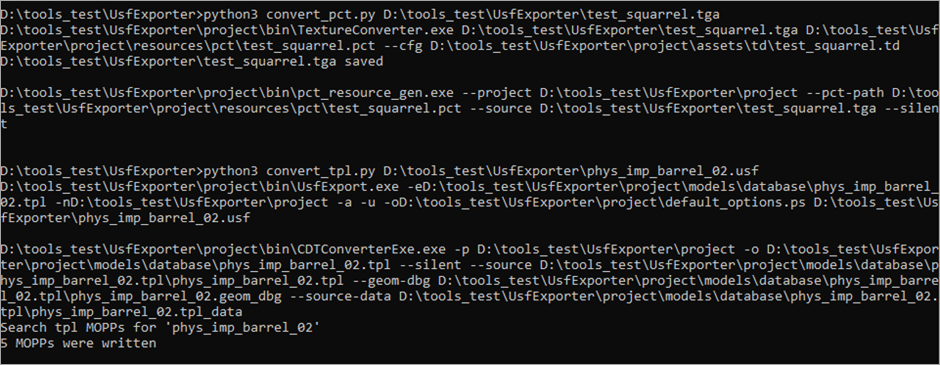
Run the following commands:
-
Now the
project\resourcesfolder contains two folders:pctandtplthat store your converted assets. -
Copy the contents of
project\resources(excluding the.yamlfile) andproject\assetsto your game installation’sclient_pc\root\local.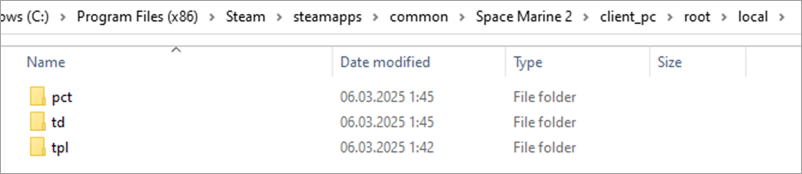
Checking results in-game
Launch the game and check the results:
Warhammer 40,000: Space Marine 2 © Games Workshop Limited 2024. Space Marine, the Space Marine logo, GW, Games Workshop, 40K, Warhammer, Warhammer 40,000, 40,000, the 'Aquila' Double-headed Eagle logo, and all associated logos, illustrations, images, names, creatures, races, vehicles, locations, weapons, characters, and the distinctive likeness thereof, are either ® or TM, and/or © Games Workshop Limited, variably registered around the world, and used under licence. Focus Entertainment and its logos are trademarks, registered or not, of Focus Entertainment. Saber Interactive and its logos are trademarks, registered or not, of Saber Interactive. Powered by Wwise © 2006 – 2024 Audiokinetic Inc. Havok software is © 2024 Microsoft. Uses Bink Video. Copyright © 1997-2024 by Epic Games Tools LLC. All rights reserved to their respective owners.