Quick Start
Let's dive in and change something in the game:
- In Mod Editor, press
Alt+Shift+Oto open the file browser. - Search for
pc marine titus authorityand double-click thepc_marine_pve_story_titus_authority.clsfile. -
Delete
head_01and all its LODs (select in the hierarchy view and then Delete Hierarchy). Go to File > Clean Up > Purge, otherwise the newhead_01object will have the.001postfix and the deleted head will be exported as well.Info
See the
authoritypart in the filename? Authority refers to the current player – you, while Client refers to any other player. For another player, they are the Authority, and you are a Client.This will open the CLS file for the Titus actor. An actor is a game entity that has logic assigned to it: a player, a barrel, and so on. Every CLS contains a set of properties that define its actor's logic. For example, the
Geometryproperty determines an actor's appearance. Changing it will have an immediate effect on your game, so this is what we'll do in Step 3.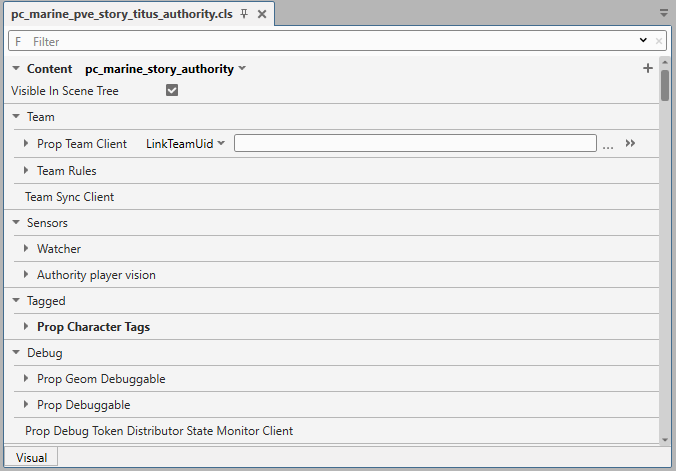
-
Find the
Geometryproperty in the list (use the filter at the top of the list to search quickly). Change itsScalesetting from1to3.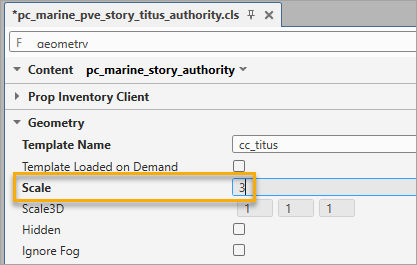
Info
Notice how the changed setting is now highlighted in bold? This indicates that its value differs from the default (or rather, parent's value — but this is the term from the advanced tutorial). To revert to the default value, click the arrow button on the right.

-
Press
Ctrl+Sto save the changes. - Right-click the CLS file tab and select Show in Explorer. This will open the folder where the current file is located. If this doesn't work, you can alternatively select Copy Info > Copy Full Path and then paste the path into Explorer manually. Be sure to delete the actual filename from the copied path – we want to open the file's parent folder, not the file itself.
- Copy the
pc_marine_pve_story_titus_authority.clsandpc_marine_pve_story_titus_authority.cls.resourcefiles to the clipboard. -
Paste the copied files into the
root\localfolder, retaining the relative folder hierarchy — everything that goes afterroot\mods_source\default_other\. In our example, place them in<path_to_game>\client_pc\root\local\ssl\characters\player\marine\outfits\story_titus. You'll need to manually recreate all required folders withinlocal.
-
That's it! Now you can launch the game and enjoy the new look and feel of Titus. And we're not spoiling this experience with a screenshot. Don't worry when you see a warning about corrupted files and the label
MODS DETECTED. This just means the magic is working.
If you don't see the expected result in-game, try the following:
- Check if the game shows the
MODS DETECTEDlabel. If not, it likely means the files weren't moved to thelocalfolder correctly — please revisit Step 7 above. - If the game crashes, verify that you unpacked the game files correctly into the
mods_sourcefolder, as described in the Install Mod Editor section. If this step is done incorrectly, IntegrationStudio may generate an invalid.resourcefile. You can confirm this by deleting thepc_marine_pve_story_titus_authority.cls.resourcefile and launching the game — it should start without crashing. Be sure to redo the extraction from scratch to prevent further crashes. While.resourcefile aren't essential for this tutorial, they will be critical for your future mods. - If the game starts correctly and shows the
MODS DETECTEDlabel, but Titus is still the same size, double-check that you modified the correct CLS file. There are several files with similar names – for example, Deathwatch Titus is a different actor, so changes to that file won't affect the one we're editing here.
Warhammer 40,000: Space Marine 2 © Games Workshop Limited 2024. Space Marine, the Space Marine logo, GW, Games Workshop, 40K, Warhammer, Warhammer 40,000, 40,000, the 'Aquila' Double-headed Eagle logo, and all associated logos, illustrations, images, names, creatures, races, vehicles, locations, weapons, characters, and the distinctive likeness thereof, are either ® or TM, and/or © Games Workshop Limited, variably registered around the world, and used under licence. Focus Entertainment and its logos are trademarks, registered or not, of Focus Entertainment. Saber Interactive and its logos are trademarks, registered or not, of Saber Interactive. Powered by Wwise © 2006 – 2024 Audiokinetic Inc. Havok software is © 2024 Microsoft. Uses Bink Video. Copyright © 1997-2024 by Epic Games Tools LLC. All rights reserved to their respective owners.